> ## Documentation Index
> Fetch the complete documentation index at: https://docs.azguard.my.id/llms.txt
> Use this file to discover all available pages before exploring further.
# Monetization Manual
> Start monetizing your scripts with an ads system
Used for rewarding users after completing ads (Lootlabs, Work.Ink, and Linkvertise)
### Step 1: Ads System Setup
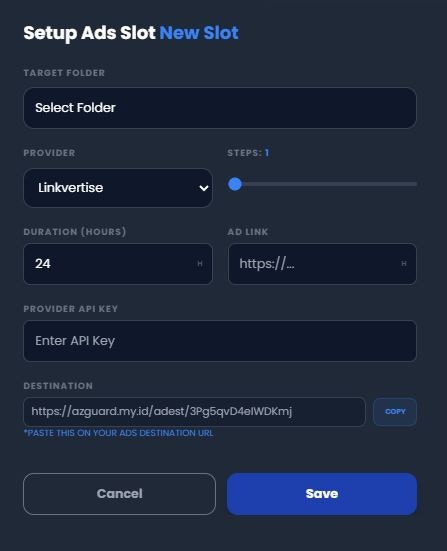 Access the [Ads Page](https://central.azguard.my.id/ads/) and click on **Setup** on of the slots.
#### Setup Steps:
1. Select the designated **Target Folder** that users will be whitelisted after ads
2. Select one of these 3 providers: **Linkvertise, Lootlabs, or Work.Ink**
3. Determine how many **Ads Needed** to get whitelisted (1 - 10)
4. Set the **Duration** of the key in hours
5. Copy the **Destination Link** (it's optional for **Lootlabs**)
KEEP THIS TAB OPEN, CONTINUE TO THE NEXT STEP
### Step 2: Ads Provider Setup
If you are confused, join our [Discord Server](https://discord.azguard.my.id) to get official support / others help
Register / Log-in to your [Linkvertise Account](https://linkvertise.com) first.
#### Provider Steps:
1. Access the [Linkvertise Dashboard](https://publisher.linkvertise.com/dashboard#dashboard) from your account.
2. Click on **Post & Earn** button on the bottom of the page.
3. Choose type **Link**, enter the **Destination Link** you copied from the step before.
4. Enter other details such as **Visibility, Title, and Ads Action** up to you.
5. Click on **Publish** and copy the **Linkvertise Link** such as `https://link-center.net/1329771/8DPY6F0ody7A`
6. Go to **Settings Tab**, enable **Anti - Bypassing**, copy your token, and **Save Settings**.
Register / Log-in to your [Lootlabs Account](https://lootlabs.gg/sign-up) first.
#### Provider Steps:
1. Access the [Lootlabs Dashboard](https://creators.lootlabs.gg/dashboard) from your account.
2. Click on **Create Single Monetized Links** button on the top-left of the page.
3. Enter any name for your Lootlabs Link, it wont matter.
4. Enter any links on **Destination URL** such as `youtube.com/watch?v=dQw4w9WgXcQ`
5. Enter other details such as **Theme, Thumbnail, Task, Revenue, etc** up to you.
6. Click on **Create Link** and copy the **Lootlabs Link** such as `https://loot-link.com/s?tOcieUIJ`
7. Go to **Advanced Tab** on top, **Generate & Copy** the API Key.
Register / Log-in to your [Work.Ink Account](https://auth.work.ink/) first.
#### Provider Steps:
1. Access the [Work.Ink Dashboard](https://dashboard.work.ink/) from your account.
2. Click on **Create Link** on the top-left of your side.
3. Enter any title for your Work.Ink Link, it wont matter.
4. Enter the **Destination Link** you copied from the step before.
5. Enter other details such as **Custom URL, Description, or Youtube** if needed.
6. Click on **Shorten Link** and copy the **Work.Ink Link** such as `https://work.ink/1YNM/sigmaboy`
### Step 3: Publishing Ads
Go back to the previous [Ads Tab](https://central.azguard.my.id/ads/).
#### Setup Steps:
1. Paste the **API Key** from the previous step (except for Work.Ink)
2. Enter your **Provider Link** from the previous step.
3. Click on **Save** and you will get the ads URL such as:
Access the [Ads Page](https://central.azguard.my.id/ads/) and click on **Setup** on of the slots.
#### Setup Steps:
1. Select the designated **Target Folder** that users will be whitelisted after ads
2. Select one of these 3 providers: **Linkvertise, Lootlabs, or Work.Ink**
3. Determine how many **Ads Needed** to get whitelisted (1 - 10)
4. Set the **Duration** of the key in hours
5. Copy the **Destination Link** (it's optional for **Lootlabs**)
KEEP THIS TAB OPEN, CONTINUE TO THE NEXT STEP
### Step 2: Ads Provider Setup
If you are confused, join our [Discord Server](https://discord.azguard.my.id) to get official support / others help
Register / Log-in to your [Linkvertise Account](https://linkvertise.com) first.
#### Provider Steps:
1. Access the [Linkvertise Dashboard](https://publisher.linkvertise.com/dashboard#dashboard) from your account.
2. Click on **Post & Earn** button on the bottom of the page.
3. Choose type **Link**, enter the **Destination Link** you copied from the step before.
4. Enter other details such as **Visibility, Title, and Ads Action** up to you.
5. Click on **Publish** and copy the **Linkvertise Link** such as `https://link-center.net/1329771/8DPY6F0ody7A`
6. Go to **Settings Tab**, enable **Anti - Bypassing**, copy your token, and **Save Settings**.
Register / Log-in to your [Lootlabs Account](https://lootlabs.gg/sign-up) first.
#### Provider Steps:
1. Access the [Lootlabs Dashboard](https://creators.lootlabs.gg/dashboard) from your account.
2. Click on **Create Single Monetized Links** button on the top-left of the page.
3. Enter any name for your Lootlabs Link, it wont matter.
4. Enter any links on **Destination URL** such as `youtube.com/watch?v=dQw4w9WgXcQ`
5. Enter other details such as **Theme, Thumbnail, Task, Revenue, etc** up to you.
6. Click on **Create Link** and copy the **Lootlabs Link** such as `https://loot-link.com/s?tOcieUIJ`
7. Go to **Advanced Tab** on top, **Generate & Copy** the API Key.
Register / Log-in to your [Work.Ink Account](https://auth.work.ink/) first.
#### Provider Steps:
1. Access the [Work.Ink Dashboard](https://dashboard.work.ink/) from your account.
2. Click on **Create Link** on the top-left of your side.
3. Enter any title for your Work.Ink Link, it wont matter.
4. Enter the **Destination Link** you copied from the step before.
5. Enter other details such as **Custom URL, Description, or Youtube** if needed.
6. Click on **Shorten Link** and copy the **Work.Ink Link** such as `https://work.ink/1YNM/sigmaboy`
### Step 3: Publishing Ads
Go back to the previous [Ads Tab](https://central.azguard.my.id/ads/).
#### Setup Steps:
1. Paste the **API Key** from the previous step (except for Work.Ink)
2. Enter your **Provider Link** from the previous step.
3. Click on **Save** and you will get the ads URL such as:
`https://azguard.my.id/ads/41uKe7LEK5ltk2n`
Congratulations, **Ads Setup** is done, you can now distribute that link to your users.