> ## Documentation Index
> Fetch the complete documentation index at: https://docs.azguard.my.id/llms.txt
> Use this file to discover all available pages before exploring further.
# Central Manual
> Start using AzarineGuard services in minutes.
This guide assumes that **you already bought a subscription**, if not [BUY IT!](https://discord.azguard.my.id)
### Step 1: Log-in to AzarineGuard
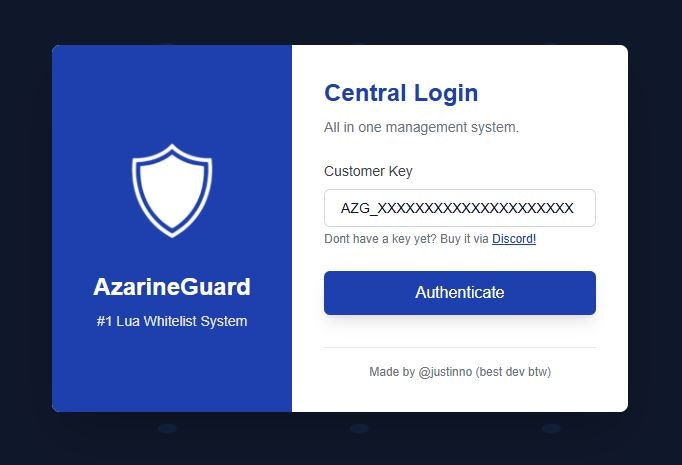 Please log-in to [AzarineGuard Central](https://central.azguard.my.id) with your API Key and complete a captcha.
> Your API Key must look like: `AZG_XXXXXXXXXXXXXXXXXXXXX` (25 Characters)
Please log-in to [AzarineGuard Central](https://central.azguard.my.id) with your API Key and complete a captcha.
> Your API Key must look like: `AZG_XXXXXXXXXXXXXXXXXXXXX` (25 Characters)
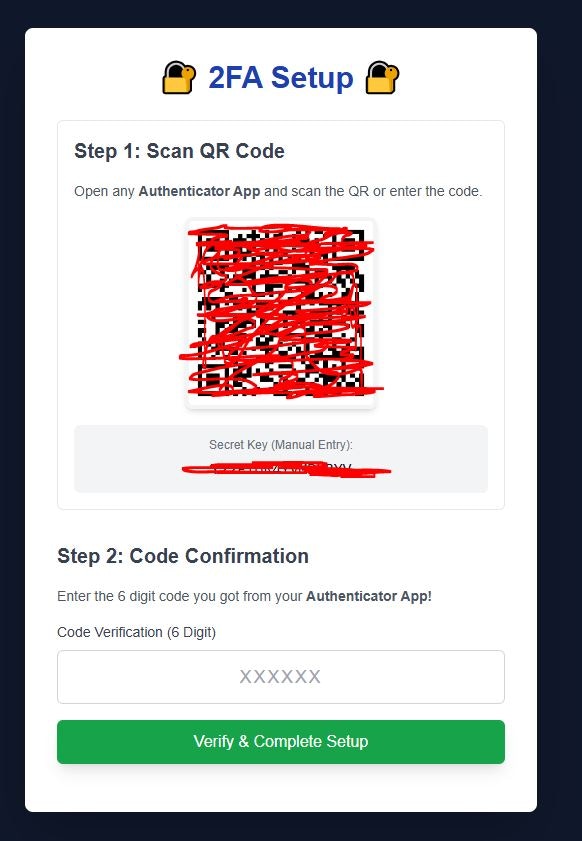 #### Setup Steps:
1. Install [Google Authenticator](https://play.google.com/store/apps/details?id=com.google.android.apps.authenticator2)
2. Scan the QR Code provided by AzarineGuard
3. Enter the code displayed on the Authenticator
***
#### Setup Steps:
1. Install [Google Authenticator](https://play.google.com/store/apps/details?id=com.google.android.apps.authenticator2)
2. Scan the QR Code provided by AzarineGuard
3. Enter the code displayed on the Authenticator
***
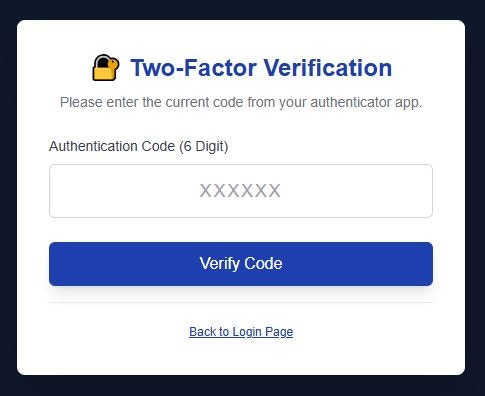 #### Normal Steps:
1. Open your [Google Authenticator](https://play.google.com/store/apps/details?id=com.google.android.apps.authenticator2)
2. Enter the code displayed on the Authenticator
If you lost your codes, please immediately contact @justinno (Discord)
### Step 2: Manage Scripts & Folders
Script Folders acts a mandatory grouping for Scripts to use other features
#### Normal Steps:
1. Open your [Google Authenticator](https://play.google.com/store/apps/details?id=com.google.android.apps.authenticator2)
2. Enter the code displayed on the Authenticator
If you lost your codes, please immediately contact @justinno (Discord)
### Step 2: Manage Scripts & Folders
Script Folders acts a mandatory grouping for Scripts to use other features
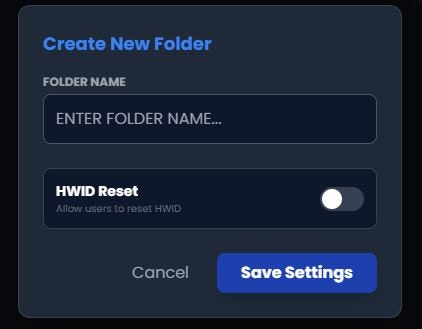 #### Creating Steps:
1. Kindly, click on **+** on your left side of the [Scripts Page](https://central.azguard.my.id/scripts/)
2. Enter some details about the folder\*
*\*You may use COMPANY\_FOLDER format for name (ex: AZGUARD\_PREMIUM)*
#### Creating Steps:
1. Kindly, click on **+** on your left side of the [Scripts Page](https://central.azguard.my.id/scripts/)
2. Enter some details about the folder\*
*\*You may use COMPANY\_FOLDER format for name (ex: AZGUARD\_PREMIUM)*
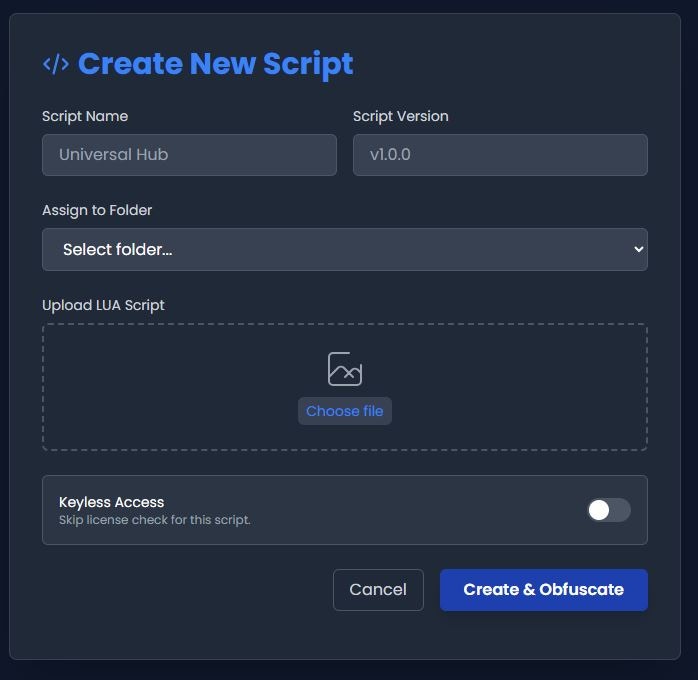 #### Creating Steps:
1. Kindly, click on **Create New** on your right side of the [Scripts Page](https://central.azguard.my.id/scripts/)
2. Enter the name for your script
3. Enter the initial version ***(It's a string)***
4. Assign it to a folder that you just made
5. Upload your script in a [Lua (5.1 is better)](https://www.lua.org/) format
6. Decide if this script is keyless ***(you can change it later)***
#### Creating Steps:
1. Kindly, click on **Create New** on your right side of the [Scripts Page](https://central.azguard.my.id/scripts/)
2. Enter the name for your script
3. Enter the initial version ***(It's a string)***
4. Assign it to a folder that you just made
5. Upload your script in a [Lua (5.1 is better)](https://www.lua.org/) format
6. Decide if this script is keyless ***(you can change it later)***
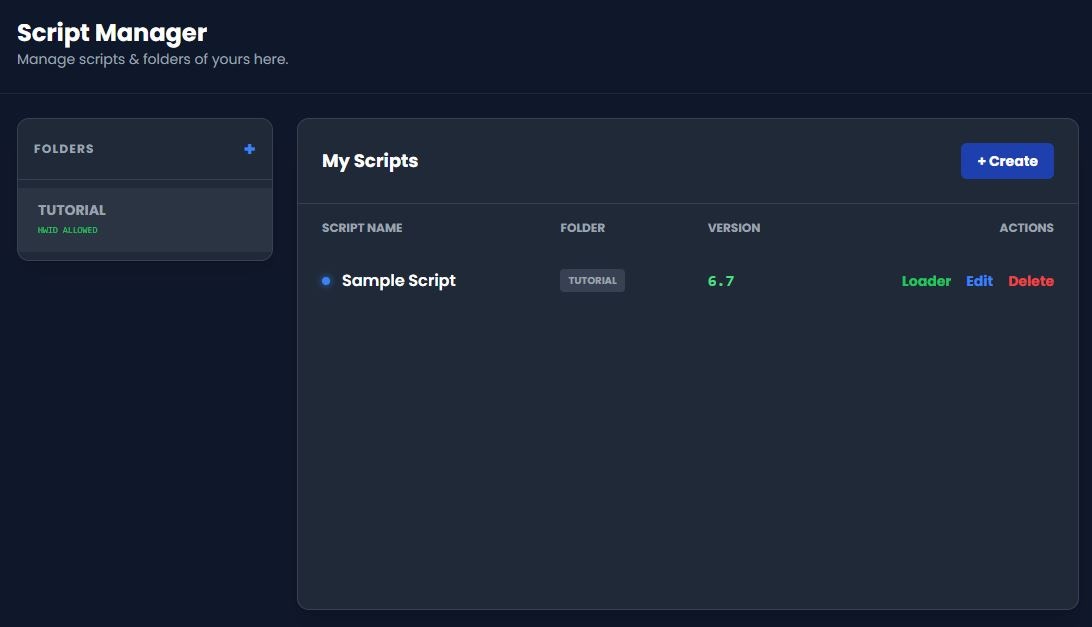 Your central should now be somewhat like this. Here are some things you can do:
#### Folder Actions:
* You may Edit your Folder **HWID Reset Allowance & Name**. *NO DELETING!*
#### Script Actions:
1. You may see **Scripts Name, Folder, Version, and Loader**.
2. If you do want to change it, click on **Configure**
3. If you want to delete it, click on **Delete** (NO UNDO)
### Step 3: Manage Keys
Remember, `-1` as a duration always meant **LIFETIME**
You have to **REDEEM** keys at [User Portal](https://azguard.my.id/portal) / Discord Bot to use it!
Your central should now be somewhat like this. Here are some things you can do:
#### Folder Actions:
* You may Edit your Folder **HWID Reset Allowance & Name**. *NO DELETING!*
#### Script Actions:
1. You may see **Scripts Name, Folder, Version, and Loader**.
2. If you do want to change it, click on **Configure**
3. If you want to delete it, click on **Delete** (NO UNDO)
### Step 3: Manage Keys
Remember, `-1` as a duration always meant **LIFETIME**
You have to **REDEEM** keys at [User Portal](https://azguard.my.id/portal) / Discord Bot to use it!
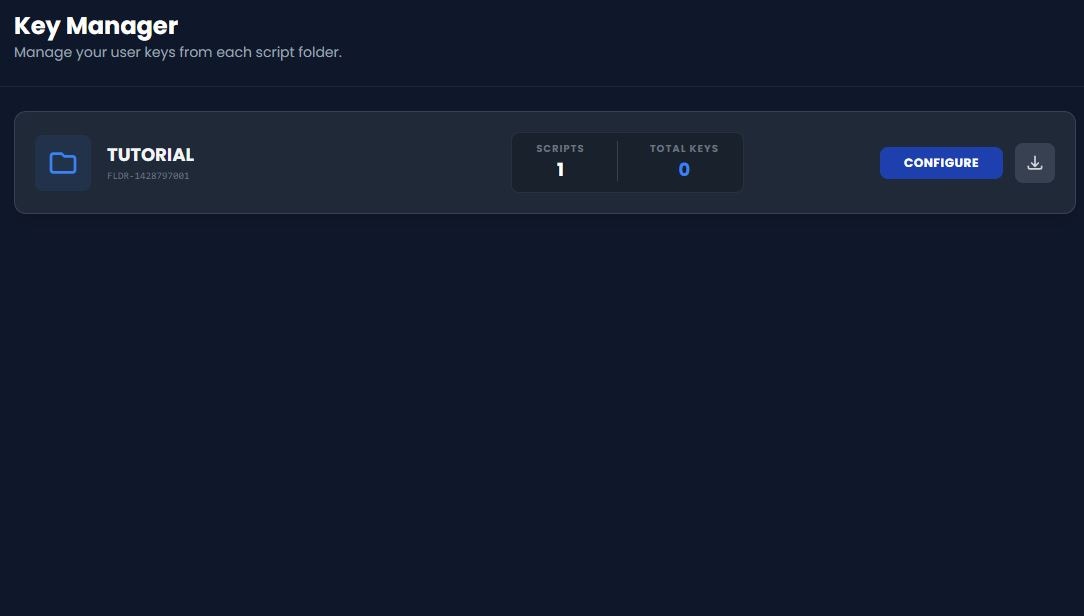 Access the [Keys Page](https://central.azguard.my.id/keys/) on you AzarineGuard Central
#### Page Functions:
1. You can see **Number of Scripts** and **Total Keys** contained in that folder
2. You may download all keys in TXT by clickinng the **Download Icon**
3. Click on **Configure** to manage all keys in that Folder
Access the [Keys Page](https://central.azguard.my.id/keys/) on you AzarineGuard Central
#### Page Functions:
1. You can see **Number of Scripts** and **Total Keys** contained in that folder
2. You may download all keys in TXT by clickinng the **Download Icon**
3. Click on **Configure** to manage all keys in that Folder
 #### Page Functions:
1. You can see **Key, Status, Banned, Expiry, HWID** in the explorer
2. You may search for **Keys** on the top-right search bar
3. You may change entries shown from 10 - 100 per page
4. You may downlod all keys by clicking the **Download** button
5. You may generate bulk keys by clicking the **Generate** button
6. You may import keys in JSON by clicking **Import** button (good for migrations)
Congratulations, you have just achived the basics of using AzarineGuard platform! Enjoy the rest of your day and don't forget to read more documentation to use more features.
## Next steps
Now that you've learned the basics, explore these key features:
Learn how to integrate AzarineGuard to your **server**.
Monetize your scripts and reward your users after **ads**.
Integrate AzarineGuard built-in macros such as **Runtime Variables**.
Join our official **community** for help and support.
**Need help?** Join our [official discord community](https://discord.azguard.my.id).
#### Page Functions:
1. You can see **Key, Status, Banned, Expiry, HWID** in the explorer
2. You may search for **Keys** on the top-right search bar
3. You may change entries shown from 10 - 100 per page
4. You may downlod all keys by clicking the **Download** button
5. You may generate bulk keys by clicking the **Generate** button
6. You may import keys in JSON by clicking **Import** button (good for migrations)
Congratulations, you have just achived the basics of using AzarineGuard platform! Enjoy the rest of your day and don't forget to read more documentation to use more features.
## Next steps
Now that you've learned the basics, explore these key features:
Learn how to integrate AzarineGuard to your **server**.
Monetize your scripts and reward your users after **ads**.
Integrate AzarineGuard built-in macros such as **Runtime Variables**.
Join our official **community** for help and support.
**Need help?** Join our [official discord community](https://discord.azguard.my.id).