

Used for rewarding users after completing ads (Lootlabs, Work.Ink, and Linkvertise)
Step 1: Ads System Setup
Creating Ads
Creating Ads
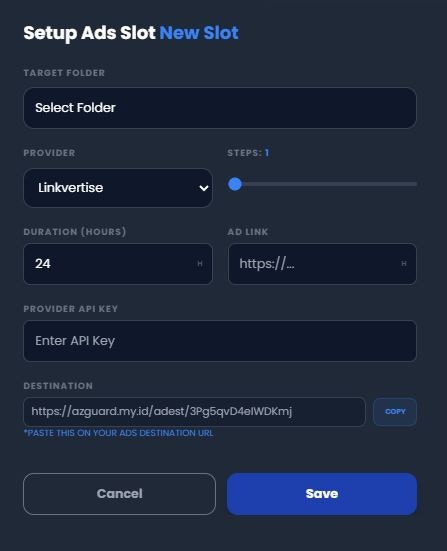
Setup Steps:
- Select the designated Target Folder that users will be whitelisted after ads
- Select one of these 3 providers: Linkvertise, Lootlabs, or Work.Ink
- Determine how many Ads Needed to get whitelisted (1 - 10)
- Set the Duration of the key in hours
- Copy the Destination Link (it’s optional for Lootlabs)
KEEP THIS TAB OPEN, CONTINUE TO THE NEXT STEP
Step 2: Ads Provider Setup
Linkvertise Setup
Linkvertise Setup
Register / Log-in to your Linkvertise Account first.
Provider Steps:
- Access the Linkvertise Dashboard from your account.
- Click on Post & Earn button on the bottom of the page.
- Choose type Link, enter the Destination Link you copied from the step before.
- Enter other details such as Visibility, Title, and Ads Action up to you.
-
Click on Publish and copy the Linkvertise Link such as
https://link-center.net/1329771/8DPY6F0ody7A - Go to Settings Tab, enable Anti - Bypassing, copy your token, and Save Settings.
Lootlabs Setup
Lootlabs Setup
Register / Log-in to your Lootlabs Account first.
Provider Steps:
- Access the Lootlabs Dashboard from your account.
- Click on Create Single Monetized Links button on the top-left of the page.
- Enter any name for your Lootlabs Link, it wont matter.
- Enter any links on Destination URL such as
youtube.com/watch?v=dQw4w9WgXcQ - Enter other details such as Theme, Thumbnail, Task, Revenue, etc up to you.
- Click on Create Link and copy the Lootlabs Link such as
https://loot-link.com/s?tOcieUIJ - Go to Advanced Tab on top, Generate & Copy the API Key.
Work.Ink Setup
Work.Ink Setup
Register / Log-in to your Work.Ink Account first.
Provider Steps:
- Access the Work.Ink Dashboard from your account.
- Click on Create Link on the top-left of your side.
- Enter any title for your Work.Ink Link, it wont matter.
- Enter the Destination Link you copied from the step before.
- Enter other details such as Custom URL, Description, or Youtube if needed.
- Click on Shorten Link and copy the Work.Ink Link such as
https://work.ink/1YNM/sigmaboy
Step 3: Publishing Ads
Congratulations, Ads Setup is done, you can now distribute that link to your users.